
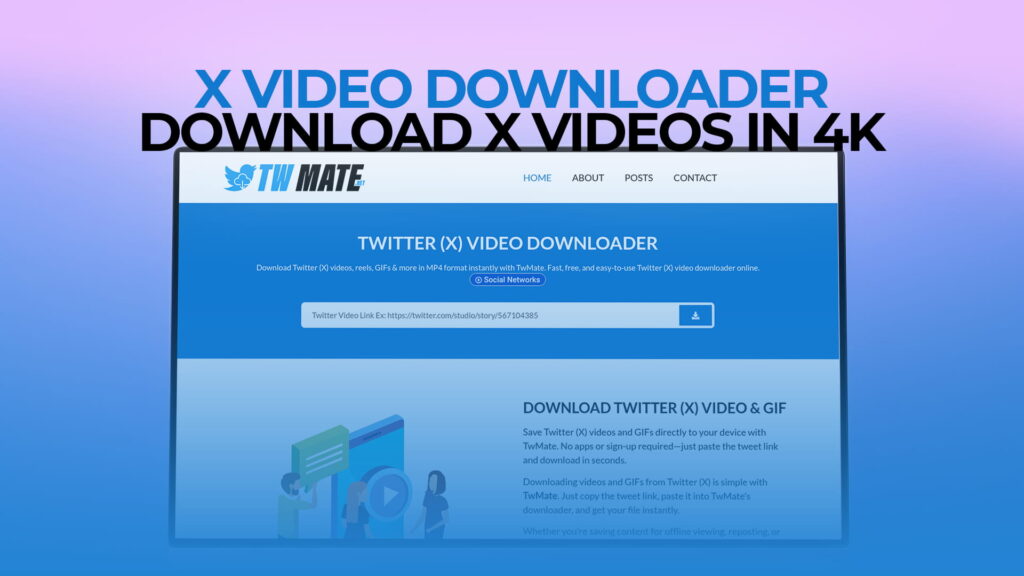
X (formerly Twitter) is one of the busiest places on the internet for video content. News clips, sports highlights, political moments, comedy, tutorials, trailers — all of it lands on X before most other platforms even pick it up. But the platform gives you no built-in way to save any of it.
If you want to keep a video, watch it offline, or share it somewhere else, you’re on your own. That’s the problem TWMate solves.
TWMate is a free online downloader built specifically for X videos. Paste a link, choose your quality — including 4K where available — and download the file. No account. No app. No subscription. The whole process is faster than most people expect.
This guide explains what TWMate does, how to use it step by step, what quality options you can expect, and everything else worth knowing before you try it.
What Is TWMate?
TWMate is a web-based video downloading tool for X (Twitter). You’ll find it at twmate.net. It takes a link from an X post that contains a video, GIF, or Reel, processes it, and hands you a downloadable file.
The tool exists because X still doesn’t offer native downloads to regular users. You can watch videos on the platform all day, but there’s no “Save video” button. Third-party tools like TWMate bridge that gap.
What makes TWMate stand out among the crowded space of online downloaders is the quality ceiling. While most tools cap out at 720p or maybe 1080p, TWMate supports up to 4K resolution when the original video was uploaded in 4K. That matters if you’re working with high-quality footage, running a screen that can actually display it, or just want the best version of something you’re archiving.
It handles:
- X Videos — Any MP4 video posted to X from any public account
- X GIFs — Animated GIFs (which X stores as MP4 files internally)
- X Reels — Short-form vertical video content on the platform
- Quote tweet videos — Videos embedded through quoted posts
You don’t register, don’t pay, and don’t install anything. Visit the site, use the tool, done.
Why People Download Videos from X
It’s worth being honest about why this demand exists. People aren’t looking for video downloaders because they’re trying to do something shady. The reasons are mostly mundane.
Offline access is the biggest one. Mobile data isn’t unlimited for everyone. Watching a long video over and over burns through a data plan fast. Downloading it once and saving it locally solves that.
Content disappears. Tweets get deleted constantly. Accounts get suspended, go private, or just vanish. If a video matters to you for any reason — professional, personal, historical — the only reliable way to keep it is a local copy.
Sharing outside X. Sending a tweet link to someone who isn’t on the platform doesn’t always work cleanly. A video file sent via WhatsApp, Telegram, email, or a group chat is more universally accessible.
Journalism and documentation. Reporters, researchers, and fact-checkers regularly need video files as evidence or reference material. A screenshot proves nothing. A video file can be used in a story, submitted as documentation, or preserved as a record.
Creators managing their own content. A lot of people post their own short clips to X and then want those files back later to re-edit, repurpose, or upload to another platform. Downloading your own content is perfectly reasonable.
Low connectivity situations. Traveling internationally, commuting through dead zones, or dealing with unreliable rural internet — downloading content before you go is practical.
X doesn’t offer a native solution for any of this. TWMate does.
What Does 4K Mean for X Videos?
4K resolution means the video has roughly 3840 × 2160 pixels — four times the pixel count of standard 1080p HD. On a large monitor, a 4K TV, or a high-resolution phone screen, the difference between 4K and 1080p is visible. Sharper edges, more detail in movement, cleaner text overlays.
For a long time, X didn’t support 4K video uploads at all. That changed. The platform now allows 4K uploads, which means some videos on the platform — especially from media organizations, brands, and professional creators — are available at that resolution.
When you use TWMate to download one of those videos, the tool detects all available quality options and presents them to you. If 4K is available, it will show up. You pick it, and you get the full-resolution file.
Not every X video has a 4K version. If someone uploaded a 480p clip, there’s no 4K to offer — the tool can only provide what’s available on X’s servers. But when 4K is there, TWMate makes it accessible.
This is one area where TWMate is ahead of a lot of competing tools that either don’t detect the highest quality option or don’t surface it clearly.
How to Use TWMate – Step-by-Step
The process is simple. Here’s exactly how it goes:
Step 1 — Find the Post on X
Log into X (or browse without logging in) and find the post with the video you want to download. The post must be from a public account — content from private or protected accounts isn’t accessible to external tools.
Step 2 — Copy the Post URL
Open the post by clicking on it. Copy the full URL from your browser’s address bar. It will look like one of these:
https://x.com/username/status/1234567890123456789 https://twitter.com/username/status/1234567890123456789
Both formats work with TWMate.
On mobile, tap the share icon on the post (the arrow icon) and select “Copy link” from the menu.
Step 3 — Open TWMate
In a new browser tab, go to TWMate. The homepage has a simple input field — it’s the main feature of the page.
Step 4 — Paste the URL
Click inside the input field, paste your copied URL, and press the download button. The tool will fetch the video information from X’s servers.
Step 5 — Select Your Quality
TWMate will display the available download options for that video. Depending on the original upload, you might see:
- 4K (2160p)
- Full HD (1080p)
- HD (720p)
- Standard (480p or 360p)
Choose the quality you want. Higher quality means larger file size — keep that in mind if you’re on a device with limited storage.
Step 6 — Download the File
Click on your chosen quality option. The file will either download directly or open in a new browser tab as a playable video. If it opens in the browser:
- Desktop: Right-click the video and choose “Save video as”
- Android: Tap and hold the video, then tap “Download video”
- iOS/iPhone: Tap the share icon and choose “Save to Files,” or use a browser like Chrome which handles downloads more directly
The file saves to your device’s downloads folder or wherever your browser is set to save files.
Using TWMate on Mobile
Mobile is where a lot of people first try these tools because that’s where they’re scrolling X in the first place. The good news is TWMate works fine in any mobile browser — no app required.
Android — Works smoothly in Chrome, Firefox, or Samsung Internet. Files download directly to your Downloads folder.
iPhone/iOS — Safari handles video downloads a little differently. If the file opens in Safari’s built-in video player instead of downloading, tap the share icon (the box with an arrow) and select “Save to Files.” This puts it in your iCloud Drive or on-device storage. Alternatively, opening TWMate in Chrome on iOS often results in cleaner direct downloads.
One thing to note: there’s no TWMate app to install. The website is the product. This is actually an advantage — you don’t have to trust an app with permissions on your phone.
Is TWMate Free?
Yes, fully free. No subscription, no credit system, no “free tier with limits.” You can use it as many times as you want without paying anything.
No registration is required either. You don’t create an account, verify an email, or go through any kind of sign-up. The tool is anonymous by design — you visit, use it, and leave without handing over any personal information.
Is TWMate Safe?
This is worth thinking about. Any time you use a third-party web tool, it’s reasonable to ask what’s happening with your data.
Here’s what TWMate actually receives from you when you use it:
- The URL of a public X post (which is already publicly accessible)
- Your IP address (which every website you visit receives by default)
That’s it. You’re not logging into X through the tool. You’re not entering a password. You’re not providing payment details. You’re not giving them your email.
The content you’re downloading is already public. You’re essentially asking the tool to fetch a file that’s sitting on X’s servers and give you a copy.
Practical safety habits that apply here and to any online tool:
- Use a browser with ad-blocking enabled — uBlock Origin is free and reliable
- Don’t download or install files you didn’t explicitly request
- If any site asks for your X password or personal information to “download a video,” that’s a red flag and you should leave immediately
TWMate is straightforward to use and twmate.net is the correct site to visit.
Quality Guide — Which Resolution Should You Choose?
Picking the right quality isn’t always obvious, especially if you’re not familiar with video specs. Here’s a simple breakdown:
4K (2160p) Best for: Large screens, archiving, professional use, any situation where maximum quality matters. File size: Large — a 2-minute 4K video can be 500MB or more. When to pick it: When you have storage space and want the best version.
1080p (Full HD) Best for: Most use cases. Looks great on any modern screen, laptop, or phone. File size: Medium — much more manageable than 4K. When to pick it: This is the right choice for most people most of the time.
720p (HD) Best for: Sharing via messaging apps, saving storage, videos where high detail isn’t critical. File size: Smaller and faster to download. When to pick it: When you need a smaller file without sacrificing watchability.
480p or 360p (SD) Best for: Sending over slow connections, saving to a storage-limited device, quick personal reference. File size: Very small. When to pick it: When size matters more than quality.
If you’re unsure, 1080p is almost always the practical sweet spot. You get good quality, the file isn’t massive, and it plays smoothly on everything.
What Content Can You Download?
Public X Videos Any video in a public tweet or post can be downloaded. This includes clips from media accounts, individual creators, brands, news organizations, sports accounts — anything that doesn’t require an account to view.
X GIFs GIFs on X are actually stored as MP4 files on the platform’s servers. When you download a GIF through TWMate, you get an MP4 that loops the same way. The GIF behavior is preserved, just in a different format.
X Reels Short-form video content on X downloads the same way as standard videos. The process is identical.
What TWMate Can’t Download
- Videos from private or protected X accounts (no external tool can access these)
- Active live streams (there’s no static file available while the stream is running)
- Direct messages that contain video (not publicly accessible)
- Posts that have been deleted (the content no longer exists on the server)
How TWMate Compares to Other X Video Downloaders
A lot of tools exist in this space. Some are decent, some are sketchy, some are useful but annoying to navigate. Here’s where TWMate sits compared to the general landscape:
Quality ceiling — Many tools stop at 720p or 1080p. TWMate’s 4K support is a genuine differentiator for users who care about resolution.
No login required — Some newer competitors now require you to make an account before unlocking full features. TWMate has never asked for that.
No software installation — Pure browser tool. No desktop app, no browser extension, no APK to sideload on Android.
Interface simplicity — The homepage is a text field and a button. That’s the product. There’s no maze of ads, no pop-ups trying to get you to install something else, no dark patterns.
Speed — The URL-to-download-options process is fast, usually a few seconds.
Mobile usability — Works well on phones without needing an app. Plenty of competitors offer a worse mobile experience despite being theoretically web-based.
The one honest limitation: TWMate processes one URL at a time. There’s no bulk download feature for grabbing multiple videos at once. For most users, this isn’t a problem. For someone needing to archive 50 clips at once, it’s something to be aware of.
Common Issues and Fixes
“The URL isn’t working.” Double-check that you copied the URL from the specific post page, not from the feed. The URL needs to contain /status/ a long string of numbers. A profile URL won’t work.
“Only low-quality options are showing.” This means the original video was uploaded at that resolution. TWMate reflects what’s available on X’s servers. It can’t create quality that wasn’t uploaded.
“The file opened in the browser instead of downloading.” On some browsers, especially iOS Safari, video files load in the built-in player rather than downloading. Use the Share button to save it to Files, or switch to Chrome for a smoother download experience.
“I’m getting an error.” The most common reasons: the tweet was deleted, the account is now private, or the URL was formatted incorrectly. Check each of these. If the video still appears publicly on X, try refreshing and recopying the URL.
“Download is slow.” 4K and 1080p files are large. A slow internet connection will make the download take longer. This isn’t a TWMate issue — it’s a bandwidth issue. Either wait it out or switch to a lower quality option for faster download.
Legal and Ethical Use
Downloading videos from X sits in a legal gray zone in most countries. X’s own terms of service technically discourage downloading content through third-party tools, but enforcement against individual users doing personal, non-commercial downloads is essentially nonexistent.
The ethics matter more than the legal technicalities for most people:
Don’t republish other people’s content as your own. This is the main rule. Taking someone’s video and posting it somewhere under your name — or without attribution — is disrespectful to the creator and can cross into copyright infringement territory.
Don’t monetize other people’s work without permission. If you’re putting ads on a compilation of someone else’s clips, that’s a different situation from downloading something for personal reference.
Attribution matters. If you’re sharing a downloaded video in a professional, journalistic, or creative context, crediting the original creator is basic respect.
Downloading your own content is completely fine. If you posted a video to X and want the file back, TWMate is a legitimate way to get it.
Fair use covers a lot. Commentary, criticism, news reporting, and education often qualify as fair use in many jurisdictions when it comes to using third-party video. This varies by country, so use your judgment.
Tips for Getting the Best Results
Always use the direct post URL. The URL should come from the specific post page, not from your feed or from hovering over a preview. Open the post fully, then copy from the address bar.
Check the quality before closing the tab. Play a few seconds of the downloaded file to confirm it worked, and the quality is what you expected.
Choose HD or 4K when you have the storage. Compressing a video later is easy. Getting back the quality you didn’t download in the first place is impossible.
For GIFs, expect the file to be an MP4. It will still loop like a GIF. This is normal.
If a download fails, wait 30 seconds and try again. Occasionally, X’s servers are slow to respond, and a second attempt usually works.
On iPhone, if you consistently have trouble with downloads in Safari, make Chrome your default browser for using TWMate. The download experience is more reliable.
Yes, when the original video was uploaded to X in 4K resolution, TWMate detects and offers the 4K download option. The tool surfaces all available resolutions — including 4K (2160p), 1080p, 720p, and lower — so you can choose what works for your device and storage situation. If 4K isn’t showing as an option, the original upload wasn’t in that resolution.
No on both counts. TWMate is completely free and requires no registration whatsoever. You don’t create a profile, verify an email, or enter payment information. You visit the site, paste a video link, and download. The tool is designed to be used without any login at all.
Using TWMate doesn’t involve sharing passwords, payment details, or personal information. You submit a public post URL and receive a video file. That’s the exchange. As with any website, your IP address is visible to the server — that’s standard for all internet traffic. Using a browser with ad-blocking (like uBlock Origin) is a good general habit. Stick to twmate.net and don’t install anything you didn’t ask for.
Private or protected accounts on X restrict their content to approved followers only. TWMate works by accessing content that’s publicly available on X’s servers — the same content you’d see if you visited X without being logged in. Since private account content requires authentication to view, no external downloader can access it.
X stores all video content — including GIFs — as MP4 files on its servers. When you download through TWMate, you get an MP4 file. This format plays on virtually every device, media player, and operating system without needing any additional software. GIFs downloaded as MP4 will still loop as expected — the format change doesn’t affect playback behavior.
Final Thoughts
X is a platform where video content moves fast. Things get posted, go viral, and disappear — sometimes in the same day. If you want to hold onto something or just watch a clip without needing an internet connection every time, having a reliable downloader is useful.
TWMate handles that job well. The 4K support puts it ahead of most free tools in this space. The no-registration policy means you don’t have to hand over any information to use it. And the interface is clean enough that the first time you use it, there’s nothing to figure out.
Visit TWMate at twmate.net, paste a link, pick your quality, and download. That’s really all there is to it.