
X won’t let you click a profile picture to enlarge it. You tap it and nothing happens, or it opens the person’s profile you were already looking at. Meanwhile the image sits there at about the size of a postage stamp, and if you try to save it you get a file so small it’s basically unusable.
There’s a version of that image that’s five to eight times larger sitting on X’s servers right now. Getting to it takes about fifteen seconds and no special software. This guide covers how, plus the honest limits on how large a PFP can actually be, which matters more than most articles admit.
Why X Shows You a Thumbnail Instead of the Real Thing
Every profile picture on X exists in several sizes at once. When someone uploads an avatar, X immediately generates a set of scaled-down copies and stores them all. Then it serves whichever one fits the space it needs to fill.
Look at where profile pictures appear: next to every post in your timeline, in reply chains, in notification lists, in search results, in the follow suggestions sidebar. A busy timeline might load a hundred of them in a single scroll. If X served the full-size version each time, pages would load noticeably slower and mobile data usage would go through the roof.
So the timeline gets a 48-pixel version. The profile page header gets something slightly bigger. Neither is the file the person actually uploaded.
When you right-click and save, you get whatever your browser happens to be displaying. That’s why your saved PFP looks like a blurry mess when you open it properly. You didn’t save the profile picture. You saved a thumbnail of it.
The Size Suffix Trick
X encodes the size directly in the image URL, which means you can ask for a different one by editing the address. This is the core method and it works in any browser without installing anything.
Here’s the process:
- Go to the person’s profile page.
- Right-click their profile picture and choose Open image in new tab. On some browsers it’s “Open image in new window” or “View image.”
- Look at the URL in the address bar. It’ll be from X’s media server and the filename will end with something like
_normal.jpg,_bigger.jpg,_200x200.jpg, or_400x400.jpg. - Delete the size suffix, keeping the file extension. So
AbC123xyz_normal.jpgbecomesAbC123xyz.jpg. - Press Enter.
The page reloads with the original uploaded file.
The suffixes you’ll run into and what they mean:
_minigives you 24 pixels square, which is barely a favicon_normalgives you 48 pixels, the timeline size_biggergives you 73 pixels_200x200and_400x400are exactly what they say- No suffix at all gives you the original upload
Most of the time you’ll be starting from _normal or _400x400. Stripping the suffix is the same move either way.
If deleting the suffix gives you an error, try changing it to _400x400 instead. Some older accounts have profile images where the un-suffixed URL doesn’t resolve properly, and 400×400 is the reliable fallback.
About That “Full Size” Promise
Here’s where I’ll be straight with you, because a lot of articles on this topic won’t be.
Profile pictures are small by design. X displays them in a circle roughly 133 pixels across on a profile page. It has no reason to store enormous versions, and historically it capped what it kept. For a long stretch, 400×400 was effectively the ceiling on what you could retrieve, and for plenty of accounts it still is.
So when you strip the suffix, you might get a 400×400 image. You might get something larger if the account uploaded a big file more recently. What you will not get is a poster-sized portrait, no matter what tool you use or what any site claims.
This matters because people go looking for a “full size PFP downloader” expecting to pull a high-resolution photo out of a 48-pixel thumbnail. That’s not a thing. No tool does it. Anything advertising it is either upscaling with software (which invents detail rather than recovering it) or lying.
What the method in this guide actually does is get you the largest version that exists. That’s usually five to eight times the pixel count of what you’d get by right-clicking the timeline. It’s a real improvement and it’s the honest ceiling.
Using a Downloader Instead
The URL trick is quick on a desktop. On a phone it’s a genuine pain, because right-click menus don’t exist, editing a long URL in a mobile address bar is fiddly, and half the time you’ll fat-finger the file extension and get an error.
For mobile, or for saving several avatars in a row, paste the profile link into a downloader and let it handle the URL work.
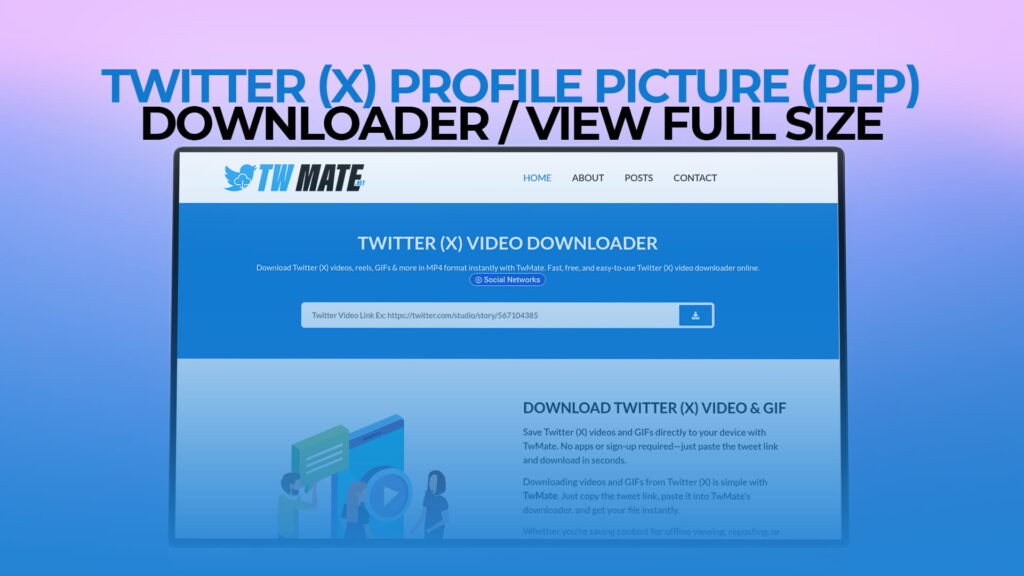
TWMate does this without an account or an app install. Copy the profile URL, paste it in, and you get the largest available version ready to save. The same tool handles video and other media from X, so if you’re already using it for clips, there’s nothing new to learn.
The mobile process:
- Open the profile in the X app.
- Tap the three-dot menu and choose Share or Copy link to profile.
- Open your browser, go to the downloader, long-press the input field, and tap Paste.
- Download.
On Android, the file lands in your Downloads folder and appears in your gallery. On iPhone it goes to the Files app, and you can move it to Photos through the share sheet if you want it there.
Viewing Without Downloading
Sometimes you don’t want the file, you just want to see the image properly. Maybe you’re checking whether an account is using a stolen photo, or you want to read text in someone’s avatar, or you’re just curious what the picture actually is.
The URL trick handles this on its own. Once you’ve stripped the suffix and pressed Enter, the enlarged image is right there in your browser. Look at it, close the tab, done. Nothing saved, nothing installed.
This is genuinely useful for spotting fake accounts. Impersonation accounts often use a compressed copy of the real person’s avatar, and at full size the difference in quality is obvious. Blurry edges, visible JPEG artifacts, or a slight crop that doesn’t match the original are all signals. You can also drop the enlarged image into a reverse image search to see where else it appears, which frequently exposes stock photos and lifted portraits.
What Format Will You Get?
Usually JPEG. X converts most uploads, which is why avatars with sharp graphics or text sometimes look softer than the person intended.
PNG uploads occasionally survive as PNG, particularly smaller files. If the URL ends in .png, keep it as PNG when you strip the suffix. Swapping the extension to .jpg will often still return an image, but you’ll be getting a re-encoded version rather than the original.
Animated avatars are a separate case. X Premium subscribers can set animated NFT-style or GIF profile pictures, and those don’t behave like static images. What you’ll typically pull with the URL method is a still frame rather than the animation. If you specifically need the moving version, it’s stored as a short video file and needs a video-capable tool rather than an image save.
Batch Saving Multiple Profile Pictures
If you’re collecting avatars for a project, a design reference folder, or a research task, doing this one at a time gets old fast.
The most efficient desktop approach: middle-click each profile link to open them in background tabs, work through the tabs stripping suffixes, and save as you go. It’s still manual, but browser tabs make it much faster than navigating back and forth.
A word of caution on automated scrapers. Tools that promise to pull hundreds of profile pictures at once usually work by hammering X’s servers with rapid requests, which is a good way to get an IP flagged or an account limited. If you’re logged in while running one, you’re putting your own account at risk. For anything at real scale, X’s official API exists and is the appropriate route.
For normal human volumes, twenty or thirty images, manual is fine and safe.
Where Saved Images Go
Browsers default to the Downloads folder. If you save avatars regularly, point them somewhere specific instead.
In Chrome: three-dot menu, Settings, Downloads, Change. Firefox and Safari have the same setting under their general preferences.
Rename files as you save them. X profile image filenames are random character strings that mean absolutely nothing three weeks later. “handle-name-avatar.jpg” takes two seconds to type and saves you from a folder full of files you can’t identify.
Downloading Your Own Profile Picture
If you’re retrieving your own avatar, the easiest route bypasses all of this.
Go to your profile, click Edit profile, and you’ll see your current picture. But better than that: check whether you still have the original file on the device you uploaded it from. That’s the true full-resolution version, and it will be far larger than anything X stores.
This is worth thinking about if you’re rebranding or moving to another platform. Pulling your avatar back off X gets you a 400-pixel copy. Finding the original in your camera roll or design files gets you the actual image. Keep your source files somewhere you can find them.
For anyone managing multiple accounts or maintaining a brand presence, keeping a folder with original avatar files, banner files, and any video assets you’ve posted saves real time later. There’s a broader look at pulling different media types off the platform in the 2026 X downloader guide if you’re building out that kind of archive.
The Ethics Part, Briefly
Viewing someone’s profile picture at full size is not remotely invasive. It’s a public image on a public profile, displayed to everyone who visits. Enlarging it is the equivalent of stepping closer to a photograph on a wall.
Using it is where judgment comes in.
Setting someone else’s photo as your own avatar is impersonation, and it’s against X’s rules regardless of intent. Compiling avatars of people you’re fixated on is not a hobby, it’s a warning sign. Using someone’s face in a meme designed to humiliate them is harassment even when the image was public.
The reasonable uses are obvious and there are plenty of them: checking if an account is impersonating someone, saving your own avatar history, collecting design references for illustration work, or grabbing a colleague’s photo for a team page with their okay. Those are fine. Use common sense on the rest.
Commercial use of someone’s likeness needs permission. Public availability is not a license, and it never has been.
Common Problems
The stripped URL returns an error. Try _400x400 instead of removing the suffix entirely. Some accounts don’t resolve without a size parameter.
You get the default egg or grey avatar. That account hasn’t set a profile picture, or it was recently removed. There’s nothing to retrieve.
The image is still small after stripping the suffix. The person uploaded a small file. If they set a 200-pixel image as their avatar, that’s the maximum that exists.
Nothing happens when you right-click. Some browser configurations and mobile views block the context menu. Use the downloader route instead, or try opening the profile in desktop mode.
The account is private. Protected accounts still show profile pictures publicly in most cases, but if you’re blocked, you won’t be able to load the profile at all. Nothing works around that, and nothing should.
Quality Expectations, Set Properly
A 400×400 image is fine for a lot of things. It works as a reference, as a small graphic, in a document, on a web page at modest size. It’s roughly what a printed passport photo needs.
It is not fine for printing large, for use as a hero image, or for anything where someone will look closely. If that’s your requirement, you need the original file from whoever made it, not a copy from a social platform. Ask them.
This applies to media generally. Anything that goes through a social platform comes out compressed and resized. The same holds for video, which is why saving clips at the highest offered resolution matters if you plan to do anything with them beyond watching once. The guide on downloading Twitter videos in HD covers that side of it.
The Short Version
Right-click the avatar, open it in a new tab, delete the size suffix from the URL, press Enter. That’s the whole method and it takes fifteen seconds.
On mobile, or when you’re saving more than a couple, paste the profile link into a downloader instead of fighting with the address bar.
And keep your expectations calibrated. You’re recovering the largest version X stored, which is a meaningful upgrade over the thumbnail but is not a high-resolution photograph. Anyone promising more than that is selling something.