
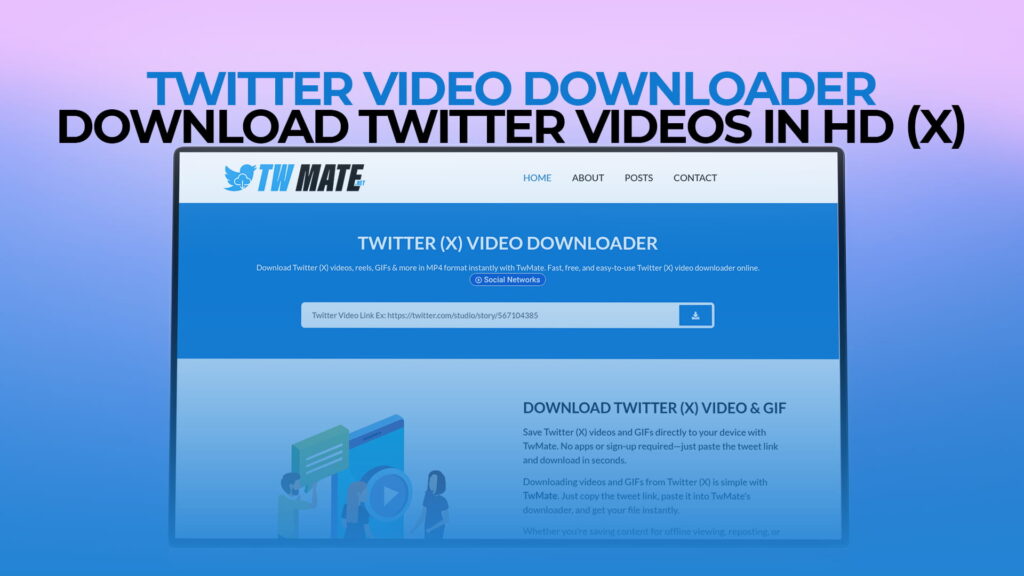
Saving a video from Twitter used to be surprisingly annoying. You’d find a clip you wanted to keep — a funny moment, a breaking news video, a tutorial someone posted — and there was no built-in download button. Twitter (now called X) still doesn’t make it easy. That gap is exactly where TWMate comes in.
TWMate is a free online Twitter video downloader. You paste a link, pick your quality, and the file is yours. No account needed, no software to install, no subscription. It supports videos, GIFs, and Reels. The whole thing takes about ten seconds.
This guide covers how TWMate works, who it’s useful for, and everything you’d want to know before trying it.
What Is TWMate?
TWMate is a web-based tool for downloading content from Twitter (X). It sits at twmate.com and does one job: takes a Twitter post URL and converts it into a downloadable file.
The reason it exists is straightforward. Twitter does not give users a native download option for videos or GIFs. If you want to save something for offline viewing, share it outside the platform, or keep a copy for personal use, you need a third-party tool. TWMate is one of the better free ones available right now.
It handles:
- Twitter videos — anything posted as an MP4 on the platform, including clips from news accounts, creators, sports highlights, and user-uploaded videos
- Twitter GIFs — these technically save as MP4 files since that’s how Twitter hosts them behind the scenes
- Twitter Reels — short-form video content posted to the platform
No registration is required. You don’t create an account or give them your email. You visit the site, use the tool, and leave.
Why People Want to Download Twitter Videos
Most people who search for a Twitter video downloader have pretty normal reasons. Here are the most common ones:
Offline viewing — Someone shares a long video thread or a documentary clip and you want to watch it later without burning mobile data, or in a place without reliable internet.
Content preservation — Tweets get deleted. Accounts get suspended. If a video matters to you — a piece of history, something sentimental, a record of something that happened — downloading it is the only way to keep it.
Research and journalism — Reporters, fact-checkers, and researchers often need local copies of tweets as evidence or reference. Screenshots don’t capture video, so they need an actual file.
Sharing across platforms — You want to send a clip to someone on WhatsApp, Telegram, or via email. A direct tweet link doesn’t always work cleanly on other platforms.
Editing and repurposing — Creators sometimes download their own clips to re-edit, add captions, or post on other platforms. Or they’re remixing with permission for commentary or reaction content.
No Wi-Fi situations — Traveling, commuting, or just dealing with spotty internet. Having the file locally saves the hassle.
None of these is a complicated reason. Twitter just doesn’t provide the option natively, so tools like TWMate fill the gap.
How to Use TWMate to Download Twitter Videos
The process is short. Here’s exactly how it works:
Step 1 — Find the Tweet
Go to Twitter (X) and find the tweet that contains the video, GIF, or Reel you want to download. It can be from any public account.
Step 2 — Copy the Tweet URL
Click on the tweet to open it, then copy the URL from your browser’s address bar. On mobile, tap the share icon on the tweet and select “Copy link.”
The URL will look something like: https://twitter.com/username/status/1234567890123456789 or the newer format: https://x.com/username/status/1234567890123456789
Both formats work fine.
Step 3 — Go to TWMate
Open a new tab and go to TWMate. You’ll see a simple input field on the homepage.
Step 4 — Paste the URL
Paste the tweet link into the input box and hit the download button (sometimes labeled “Download” or shown as an arrow icon).
Step 5 — Choose Your Quality
TWMate will process the link and show you the available download options. For most videos, you’ll get a choice of resolutions — typically HD (720p or 1080p) and a smaller standard definition version. Pick the one you want.
Step 6 — Download the File
Click the quality you want. The file will either download directly to your device or open in a new tab, where you can right-click and “Save as.”
On mobile, tap and hold the video once it opens, then tap “Download video” or “Save to device” depending on your browser.
That’s it. The whole thing typically takes under 30 seconds, most of which is just waiting for the file to download, depending on your connection speed.
Quality Options on TWMate
One of the more useful things about TWMate is that it shows you all available quality options rather than forcing a single resolution.
For a standard Twitter video, you might see options like:
- 1080p (Full HD) — Best quality, largest file size
- 720p (HD) — Good balance of quality and size, usually the sweet spot for most people
- 480p or 360p (SD) — Smaller files, useful if storage or bandwidth is limited
Not every video will have all resolutions available. This depends on what quality the original uploader posted. If someone uploaded a 480p video, there’s no 1080p version to offer — the tool can only give you what exists.
GIFs download as MP4 files in most cases, which is actually fine since they play the same way.
Does TWMate Work on Mobile?
Yes. TWMate works in any mobile browser — Chrome, Safari, Firefox, Samsung Internet, whatever you use. You don’t need to download an app.
The process on mobile is the same as desktop. The only minor difference is step 6: instead of right-clicking to save, you tap and hold the video file once it opens, then choose “Save” or “Download” from the menu that appears.
Some browsers on iOS handle this slightly differently. If the file opens in the browser player instead of downloading, you can try:
- Tap the share icon and choose “Save to Files”
- Or switch to a browser like Chrome on iOS which handles direct downloads more cleanly
Android browsers generally download files more smoothly.
Is TWMate Free?
Yes, completely free. There’s no paid tier, no premium version that unlocks HD, and no credit system. You use it without paying anything.
TWMate also doesn’t require registration. No email address, no account creation, no login. You visit the site and use it as an anonymous visitor. This is one of the cleaner aspects of the service — many similar tools make you sign up before they’ll let you download anything.
Is TWMate Safe to Use?
This is a reasonable thing to wonder. Any time you’re using a third-party web tool, it’s worth thinking about what information you’re sharing.
With TWMate, what you’re giving them is:
- The URL of a public tweet
- Your IP address (which every website you visit receives)
You are not entering passwords, payment information, or personal details. The tweets you’re downloading are already public. You’re not logging into Twitter through TWMate.
A few practical safety habits when using any online downloader:
- Use a browser with ad-blocking enabled (uBlock Origin is a solid free option)
- Don’t download files you didn’t ask for — if something auto-downloads, that’s suspicious
- If you’re ever asked to install something or enter an email, that’s unusual for a tool like this
TWMate is a straightforward tool used by a lot of people. Stick to the known site at twmate.com.
What Kinds of Content Can You Download with TWMate?
Standard Twitter Videos Any MP4 video posted to Twitter — from news clips to creative content to personal videos — can be downloaded as long as the tweet is public.
Twitter GIFs Technically, Twitter converts all GIFs to MP4 format when they’re uploaded. So when you download a “GIF” through TWMate, you’ll get an MP4 file. This is normal and actually fine — the file will play the same way.
Twitter Reels Short video content on Twitter works the same as regular videos in terms of how TWMate handles them.
Videos from Quoted Tweets If a tweet is quoting another tweet that contains a video, you should be able to get the URL for the original video tweet and download from that.
What TWMate can’t download:
- Videos from private or protected accounts (the content isn’t publicly accessible)
- Live streams (there’s no static file to grab while a stream is live)
- Content blocked by regional restrictions at the server level
TWMate vs Other Twitter Video Downloaders
Other tools do roughly the same thing — ssstwitter, savetweetvid, twittervideodownloader.com, and others. So what makes TWMate worth using?
A few things stand out:
No registration. A surprising number of downloaders now ask you to make an account before accessing full features. TWMate skips that entirely.
HD quality options. Some tools only give you one quality option, usually not the best one. TWMate shows you what’s available and lets you choose.
Clean interface. The homepage is a text box and a button. There’s no maze of ads or dark patterns trying to get you to download unrelated software.
Mobile-friendly. Works just as well on a phone as on a desktop, without needing an app.
Speed. Processing time is fast. The tool doesn’t make you wait long between pasting a URL and getting download options.
Every tool has off-days, and the internet changes fast, so the best approach is always to try a couple of options. But TWMate holds up well against the alternatives.
Common Mistakes and How to Fix Them
The URL isn’t working. Make sure you copied the full URL from the tweet’s own page, not from a feed view. The URL should be /status/ followed by a long number. If you copied a profile URL by mistake, that’s why it’s not working.
The video quality options seem low. The original upload quality determines what’s available. If the best option you see is 480p, that’s what exists on Twitter’s servers. TWMate can’t create quality that wasn’t uploaded.
The file opens in the browser but doesn’t download. On some browsers, especially iOS Safari, video files open in the player instead of downloading. Use the share button to save to Files, or try opening the page in a different browser like Chrome.
You see an error message. This usually means one of three things: the tweet has been deleted, the account is private, or the tweet URL wasn’t formatted correctly. Double-check the link.
The download is very slow. This is almost always a local internet connection issue, not TWMate. Large HD video files take longer on slow connections.
Legal and Ethical Considerations
Downloading videos from Twitter for personal use — saving something for offline viewing, keeping a clip you care about — sits in a gray area legally in most places. Twitter’s terms of service technically prohibit downloading content through unauthorized means, but enforcement against individual users for personal downloads essentially doesn’t happen.
The more important question is ethics, not just legality:
- Don’t re-upload someone’s content as your own. If you didn’t make it, don’t post it somewhere else claiming you did.
- Don’t monetize other people’s work without permission.
- For journalism or commentary use, downloading and using clips with proper attribution is generally considered fair use in many jurisdictions, but that varies by country.
- If you’re downloading your own content to repost elsewhere, go right ahead.
Tools like TWMate are neutral. What matters is what you do with the files afterward.
Tips for Getting the Best Results with TWMate
Always use the direct tweet URL. Don’t use a shortened link or a link to the user’s profile. Go to the specific tweet and copy the address bar URL.
Download at the highest quality available. If you have the storage, grab the HD version. You can always compress it later. You can’t recover quality you didn’t download.
Check what you’re downloading before closing the tab. Quickly play a few seconds of the downloaded file to confirm it downloaded correctly before you close everything.
For GIFs specifically, the downloaded MP4 will loop when played in most media players. That’s normal behavior — it’s just the GIF format in a different container.
Batch work is manual. TWMate processes one URL at a time. If you need to download a lot of clips, you’ll go through the process for each one. There’s no bulk feature for multiple URLs at once.
TWMate is free to use with no subscription, no credit system, and no premium tier. Whether it stays free long-term depends on how the service is maintained — that’s true of any free tool. As of now, there are no charges for any feature on the site.
No. TWMate requires zero registration. You don’t enter an email address, create a password, or log in. You visit the site, paste a link, and download. That’s the whole flow.
No. TWMate can only access publicly available content. Private and protected accounts require login authentication that the tool doesn’t have. If you can’t see a tweet without being logged in and approved, TWMate can’t download it either.
TWMate shows you all the resolutions available for any given video. These can include 1080p, 720p, 480p, and 360p depending on what was originally uploaded. HD options are available when the original video was uploaded in HD. The tool doesn’t compress or alter quality — it gives you what’s on Twitter’s servers.
Downloading for personal, non-commercial use is rarely pursued legally, though Twitter’s terms of service technically restrict it. The bigger concern is what you do with the file afterward. Re-uploading content as your own, monetizing someone else’s work, or using it in ways that misrepresent the original creator is where things get problematic. For personal use, saving a clip you like is generally low-risk in most regions.
Final Thoughts
If you’ve ever wanted to save a Twitter video and found yourself stuck without an obvious option, that’s the exact problem TWMate solves. It’s fast, it’s free, it doesn’t ask you to sign up for anything, and it gives you real quality choices instead of forcing a single low-res download.
The site at twmate handles videos, GIFs, and Reels. The process is a paste-and-click job that anyone can figure out in under a minute. There’s no app to download, no subscription to manage, and no form to fill out.
For journalists, researchers, content creators, or just someone who wants to save a video they came across, TWMate gets the job done without making you jump through hoops.