
X, the platform almost everyone still calls Twitter, is full of videos worth keeping on your computer. A long-form interview, a product demo, a viral clip you want for a presentation, a news moment you’d like to archive before it disappears. The catch is the same on a Windows PC as it is on a phone: X gives you no download button on most videos, and right-clicking a clip in your browser doesn’t offer a “save video” option the way it does for images.
The good news is that downloading X videos on a Windows laptop or desktop is straightforward once you know where to look, and a big screen actually makes the whole thing easier. You don’t need to install heavy software, you don’t need to pay, and for the simplest method you don’t even need to leave your browser. Below are four reliable ways to download Twitter (X) videos on PC in 2026, ordered from the easiest for everyday users to the more technical options for power users.
A Quick Note Before You Begin
Most public X videos download without any fuss, but it helps to know the basics first. X has never offered a real download button for other people’s videos, largely because of rights management and advertiser concerns, which is exactly why third-party tools exist and why this is such a common search.
Keep your downloads to public tweets and personal use, and avoid pulling content from private or protected accounts, since that breaks X’s terms of service. Saving a public clip to rewatch, edit for your own project, or keep as a reference is generally fine. Reposting someone else’s video without permission is where copyright trouble starts, so credit the original creator if you ever share it. With that covered, let’s get into the methods.
Method 1: Download Twitter (X) Videos with TWMate (Easiest, No Software)
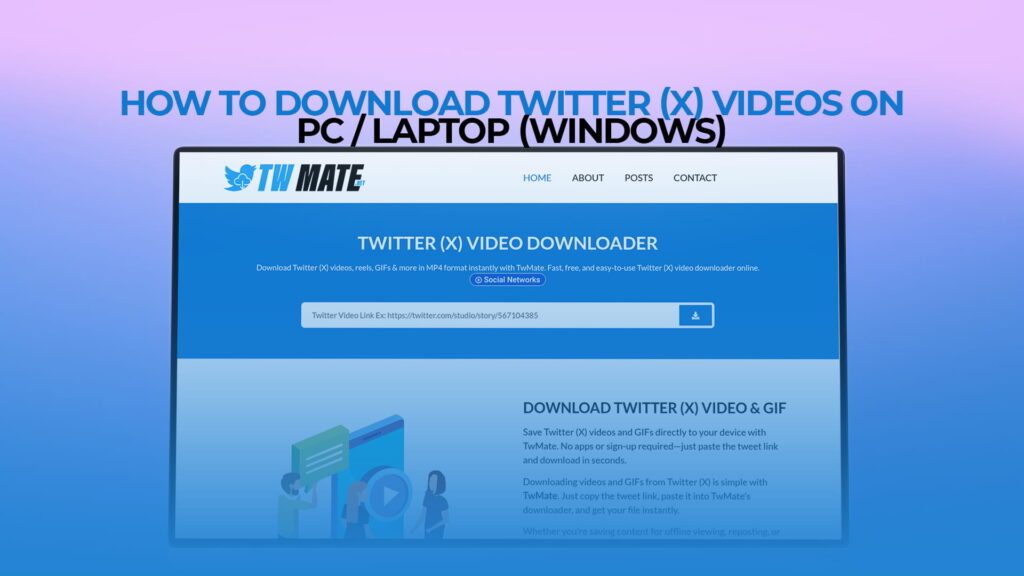
The fastest route on a Windows PC is an online downloader, and TWMate is built precisely for this. It runs entirely in your browser, so there’s nothing to install, no account to create, and no limit on how many videos you save. It handles X videos, Reels, GIFs, and more, all for free. For most people this is the only method you’ll ever need, and it works identically in Chrome, Edge, Firefox, or any browser on Windows 10 and 11.
Here’s the step-by-step:
Step 1 – Copy the tweet link. Open X in your browser (or the X desktop app) and find the video you want. Click the share icon beneath the post, then choose Copy link to Tweet. You can also click the three dots on the tweet and select “Copy link to Tweet,” or simply copy the URL straight from your browser’s address bar after opening the post.
Step 2 – Open TWMate. In a new tab, go to the TWMate homepage. You’ll see a single paste box at the top of the page.
Step 3 – Paste and download. Click the box, paste the link (Ctrl + V), and press Download. TWMate fetches the video from Twitter’s servers and shows you the quality options within a few seconds.
Step 4 – Choose your quality. Pick the resolution you want. Every clip comes as a standard MP4, the format Windows Media Player and every editor reads without conversion. If you want the sharpest copy, take the highest option. The tool lets you grab clips through a dependable X downloader, and for high-resolution uploads it can even download X videos in 4K when the original supports it.
Step 5 – Save to your PC. Click the Download button for your chosen quality. Windows saves the file to your Downloads folder by default, or prompts you to pick a location if you’ve set your browser to ask. That’s it.
The whole process takes under a minute. Because it’s browser-based, it doesn’t care whether you’re on a gaming desktop or a basic work laptop, and it leaves no software cluttering your system. It’s also handy for grabbing clips and animations straight from posts, so if you regularly download Twitter videos and GIFs from tweets online, bookmarking the page makes your next save a single click away.
Method 2: Use a Browser Extension for One-Click Downloads
If you save Twitter videos often, a browser extension builds the download button right into X itself, so you never have to copy a link or open a second tab. This is the most convenient option for heavy users on Chrome or Edge, and there are several solid free extensions in the Chrome Web Store.
Most of them work the same elegant way. A “Download” button is added directly below every video on X, and when you click it, the download starts instantly, fetching the highest available resolution as an MP4.
Here’s how to set one up:
Step 1 – Install a trusted extension. Open the Chrome Web Store (Edge uses it too) and search for an X or Twitter video downloader. Check the reviews, the update date, and the permissions before installing.
Step 2 – Mind the permissions. Favor extensions that process downloads locally and don’t ask for sweeping access. The better extensions do all processing locally on your machine, so no video data or personal information is sent to outside servers. A privacy-respecting option won’t require a login or track your browsing. Good extensions run only on X.com, don’t track your browsing activity, and deliver clean files with no watermark, exactly as the creator uploaded them.
Step 3 – Browse X as normal. Once installed, head to X.com and scroll to any video. You navigate to X.com, find a video or GIF you want to save, and look for the new Download icon placed next to the standard like, retweet, and share buttons under the media.
Step 4 – Click to download. Hit the download button and the MP4 saves straight to your PC. Many extensions offer two modes. A quick download saves the video directly to your computer with no waiting, while an HD option opens a website for higher-quality downloads up to 4K.
The trade-offs are worth knowing. Extensions are wonderfully fast for frequent use, but some have free-tier limits, and the category sees a lot of churn. Some popular download extensions have been removed and reinstated on the Chrome Web Store multiple times for policy violations, and every removal disrupts users mid-download. If your extension suddenly stops working, that’s usually why, and a browser tool like TWMate is the reliable fallback that never needs updating on your end.
Method 3: Use yt-dlp for Advanced and Restricted Downloads
For power users who want maximum reliability or need to handle videos that ordinary tools can’t touch, yt-dlp is the gold standard on Windows. It’s a free, open-source command-line program, and while it’s more technical than the other methods, nothing else matches it for stubborn clips, batch jobs, or streaming formats. yt-dlp is a free, open-source, command-line tool that’s the most reliable cross-platform option in 2026, and it supports hundreds of sites including X.
Here’s the basic setup:
Step 1 – Download yt-dlp. Get the Windows executable from the official yt-dlp project page. It’s a single file, with no installer needed.
Step 2 – Place it in a folder. Drop the file somewhere easy to reach, such as a folder on your desktop, and open Command Prompt or PowerShell in that location.
Step 3 – Copy the tweet link. From X, copy the URL of the video post the same way as before.
Step 4 – Run the command. Type yt-dlp followed by a space and the pasted tweet link, then press Enter. yt-dlp grabs the highest-quality version and saves it to the folder. To choose a specific format or resolution, you can add flags, but the plain command works for most clips.
The strength of yt-dlp is that it pulls clean files at the best available quality and can download an entire list of videos at once, which is why archivists and researchers rely on it. The downside is the learning curve, since it has no graphical interface. If a command line feels intimidating, the first two methods will serve you perfectly well, and you can keep yt-dlp in mind for the rare video that resists everything else.
Method 4: Save X Videos Natively with X Premium on the Web
The fourth option is the one Twitter built in, and it needs no outside tools at all. The catch is that it only works in limited cases, which is why it sits last.
If you subscribe to X Premium, the platform lets you download certain videos directly from the website on your PC. The feature is restricted: it generally covers only newer videos, and the creator must have left downloads enabled, while private, age-restricted, or copyrighted content stays blocked.
Here’s how to try it:
Step 1 – Open the video tweet on X.com while signed in to your Premium account.
Step 2 – Click the share or three-dot menu on the post.
Step 3 – Look for a Download option. If the video qualifies and the creator allowed it, you’ll see a download choice that saves the MP4 to your computer.
The reality is that this button appears on only a fraction of videos, because many creators leave downloads off and an enormous amount of content predates the feature. For a subscriber saving the odd eligible clip, it’s convenient. For everything else, you’ll be reaching for one of the other three methods anyway. If you’d rather skip the subscription entirely, a free Twitter video downloader does the same job on any video without the limits.
Where Do Downloaded Videos Go on Windows?
A common question after a first download is simply where the file landed. On a Windows PC the answer is almost always the Downloads folder, which you’ll find in File Explorer under Quick Access or inside your user folder. Browser tools and extensions both default there unless you’ve told your browser to ask for a save location each time. yt-dlp saves to whatever folder you ran the command from. If you ever lose track of a file, open File Explorer, click Downloads, and sort by date to find your most recent save at the top.
Which Method Should You Choose?
For the vast majority of people, the simplest choice wins. An online downloader needs no software, no subscription, and no setup, and it works on every public video from any account in any browser. If you only save the occasional clip, paste-and-download is all you’ll ever need, and it keeps your PC clean.
Pick a browser extension if you download videos daily and want a one-click button baked into X. Choose yt-dlp if you’re comfortable with a command line and need batch downloads, top reliability, or support for tricky streaming clips. And use X Premium’s native download only if you already subscribe and the specific video happens to qualify.
A Few Tips for Smoother Downloads
A handful of small habits make saving X videos on Windows easier. Always grab the highest quality available, since you can compress a large file later but you can’t restore lost detail. Confirm the tweet is public before copying the link, because protected posts won’t load in any downloader. If a download stalls, refresh the post and try again, as a momentary hiccup on Twitter’s side is the usual cause rather than the tool. Keep your browser updated so extensions keep working smoothly, and make sure you have a little free disk space, because HD and 4K clips can be larger than you’d expect.
The easiest way is to use an online downloader like TWMate right in your browser. Copy the tweet link by clicking the share icon and choosing “Copy link to Tweet,” then paste it into the tool, pick your quality, and click Download. The MP4 saves to your Downloads folder. There’s no software to install and no account needed, and it works in Chrome, Edge, and Firefox.
By default, they land in your Downloads folder, which you’ll find in File Explorer under Quick Access or inside your user folder. Browser tools and extensions both save there unless you’ve set your browser to ask for a location each time. If you used yt-dlp, the file saves to whatever folder you ran the command from. Sort by date in File Explorer to find your most recent download quickly.
Yes. A web-based downloader needs nothing installed at all. You just paste the tweet link into the site and download the MP4 straight to your computer. Extensions and command-line tools like yt-dlp are optional extras for people who download in bulk or want a one-click button inside X, but they aren’t required for everyday saving.
Almost always MP4. Twitter automatically serves its videos as MP4, which is the universal format Windows Media Player and every video editor read without any conversion. That means your saved clip will play and edit on a Windows PC right away, with no extra step needed.
Yes, as long as the original was uploaded in that quality. A good downloader gives you a choice of resolutions after you paste the link, so you can save the clip in full HD MP4 or even 4K when it’s available. Picking the highest option keeps the video crisp on a large screen, since you can compress a file later but can’t add detail back.
Final Thoughts
Downloading Twitter (X) videos on a Windows PC or laptop is genuinely easy in 2026, and you now have four dependable methods covering every need. The browser-based route wins on speed and simplicity for most people, letting you save any public X video, Reel, or GIF in clean HD MP4 without software, an account, or a single payment. A browser extension suits frequent downloaders, yt-dlp serves power users and archivists, and X Premium covers eligible clips natively.
Pick whichever fits how often you download, keep your saves to personal use, and credit creators when you share. The next time a video catches your eye in your feed, you’ll know exactly how to keep a copy on your computer.